

In the construction industry, cost estimation is essential to maintain projects on budget and to make a profit. All the components, labor and materials, equipment, permits, and overheads must be taken into consideration and accurately recorded. Advanced estimating software is a possibility, but many contractors, builders, and project managers are still using Microsoft Excel due to its accessibility, customization capability, and cost-effectiveness.
Excel provides the means of flexibility to develop customized spreadsheets, real-time tracking of expenditures, and handling data in a manner suitable for certain project requirements. It can be effective in streamlining takeoffs and organizing cost categories and even automating repetitive calculations. The outcome is quicker and more accurate estimations that could help to support competitive offers and easier project implementation.
Why Use Excel for Construction Estimating?
It may be a good idea to comprehend why Excel continues to be a favorite tool among contractors and estimators, before going into the how:
- Affordable: Excel is already part of the Microsoft Office suite, which does not require expensive software subscriptions.
- Customizable: You can create templates based on your workflow of company.
- Scalable: Can be used on small projects and large commercial assignments.
- Familiar: This is a basic knowledge of Excel that most professionals possess already.
- Integration: It is easy to import/export data to/from other systems.
Set Up the Spreadsheet Structure
The initial process of using Excel to estimate construction involves the development of a formatted template. An effective template is time-saving and consistent throughout projects.

Add Header Information: Add project name, client, date, and name of the estimator at the top part of the sheet.
Define Cost Categories: It is important to group your estimate into common groups that include Materials, Labor, Equipment, and Subcontractors.
Add Key Columns: Columns are to be used for each item:
Description of Item or Task: What the item or task is (e.g., “Concrete”, “Framing labor”).
Quantity: It is the amount of units required.
Unit of Measure (UoM): The quantity unit (e.g., sq. ft, hrs, cubic yards).
Unit Cost: The cost per unit.
Total Cost: This is the total cost of the product = quantity x unit cost.
Input Quantities and Units
Quantities always form the basis of construction estimating. The quantities of various trades can be organized and calculated easily with the help of Excel.
Example:
| Item | Unit | Quantity | Unit Cost | Total Cost |
| Concrete (foundation) | CY | 50 | $120 | =B3*C3 |
| Rebar | lbs | 2,000 | $0.80 | =B4*C4 |
| Formwork labor | hrs | 100 | $40 | =B5*C5 |
This setup allows you to multiply quantity × unit cost automatically, reducing manual errors.
Use Excel Formulas for Accuracy
Excel has the greatest potential in formulas and functions that might save time and enhance accuracy. The following are some useful ones in construction estimating:
Multiplication for Totals:
=Quantity * Unit Cost
Sum to The Totals of Categories:
=SUM(E3:E10) → Sums up all the costs in a category.
If Function for Conditions:
Example: Add a 10 % overtime expense in case the labor hours are more than 40 a week.
=IF(B5>40, B5*40*1.1, B5*40)
Vlookup for Price Databases:
Associate your estimate with a material cost database.
=VLOOKUP(A3, Materials!A:D, 3, FALSE)
Round for Cleaner Numbers:
=ROUND(E5,2) → Rounded off the costs to the nearest two decimals.
These formulas make Excel a smart estimating system that decreases errors.
Add Labor and Productivity Rates
The biggest expense in construction is labor, which may represent 3050 percent of the budget. Excel will enable you to monitor labor productivity rates and utilize them in estimates.
Example:
| Task | Crew Size | Productivity (SF/day) | Area (SF) | Labor Hours | Labor Cost |
| Drywall installation | 3 | 500 | 2000 | =D3/C3 | =E3*Rate |
In this case, the number of hours needed is calculated by Excel and multiplied by the hourly rates. This will allow you to take into consideration the crew size and productivity variations.
Factor in Overheads and Profit
Indirect costs such as:
In order to have a complete estimate.
- Insurance
- Permits
- Office expenses
- Project management fees
You can have a section in the Excel which you can use to input overheads and use a formula which will mark up on a percentage basis:
=DirectCosts * 0.10 → Adds 10% overhead.
For profit, simply add another formula:
=TotalCosts * 0.15 → Adds 15% profit margin
This would make your estimates competitive and, at the same time, guard profitability.
Build a Dashboard with Excel Features
The features included in the Excel make the estimate look more professional and simpler to understand.
- Conditional Formatting: Mark costs that are not within budget.
- Data Authentication: Avoid wrong entries (e.g., negative quantities).
- Pivot Tables: Break down costs by trade or category.
- Charts: Visualize labor vs. material costs to present to clients.
These attributes make an ordinary spreadsheet a living cost management tool.
Update with Historical Data
Construction estimates are better as time goes by, provided you record actual costs and compare them to your Excel estimates.
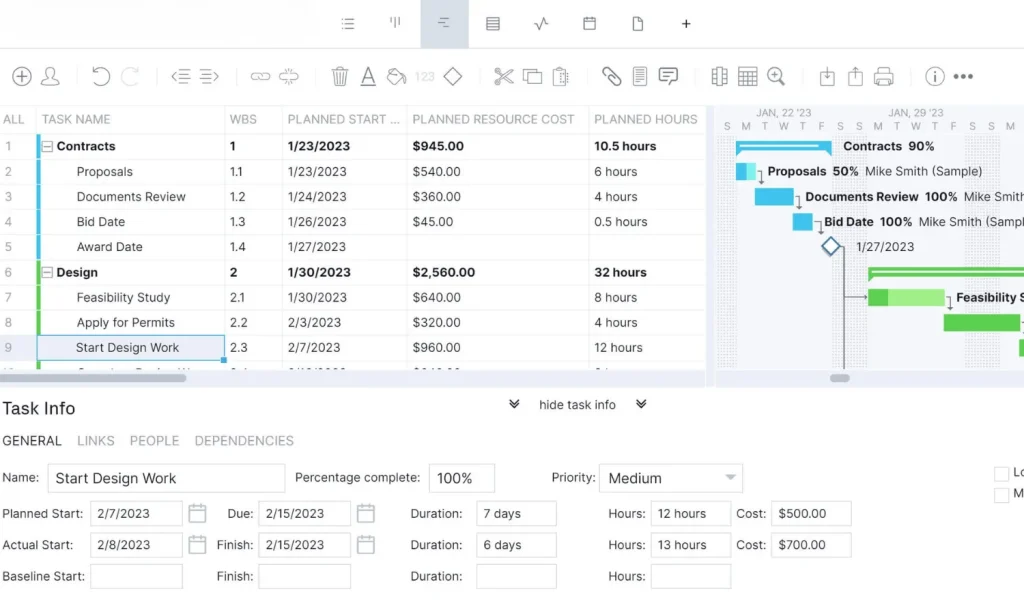
Create a “Historical Data” sheet in your workbook that logs:
- Materials utilized and the real cost.
- Labor hours recorded.
- Subcontractor fees.
This enables you to streamline the productivity rates, pricing databases, and percentages, and have each estimate more accurate than the previous.
Save Templates for Reuse
When you have come up with a good estimating spreadsheet, save it as a template file (.xltx). This will enable you to use the same structure when working on the subsequent projects without having to start anew.
As time progresses, you can develop several templates of various project types, including:
- Residential projects
- Commercial projects
- Renovations and remodels
Common Mistakes to Avoid in Excel Estimating
Excel is a powerful tool, but it is always easy to make mistakes, which will be reflected in incorrect estimates. Here are a few to watch out for:
- Failing to revise unit costs regularly.
- Keying in rather than typing in formulas.
- Failure to distinguish labor, materials, and overheads.
- Application of undefined units (e.g, mixing SF with SY).
- Making spreadsheets too complicated with numerous tabs.
It is also important to keep your spreadsheet simple and structured so that it is accurate and time-saving.
Conclusion
Excel may not be as powerful as specialized estimating software, but with the proper structure and formulas, Excel could be an incredibly useful tool in estimating construction costs. You can create professional estimates by establishing itemized breakdowns, totals by formula, labor productivity, overheads, and profit.
Consistency is the key; you should update your data regularly, and you should create templates that are helpful for several projects. Excel can give you the flexibility and control to handle the cost of construction and prepare competitive bids, whether you are a small contractor or work as part of a large firm.
FAQs
Is Excel Good for Construction Estimating?
Yes. Excel has gained popularity as one of the construction estimating tools due to its affordability, customization, and it is familiarity to a majority of contractors.
What Formulas in Excel Are Useful for Construction Estimating?
Excel formulas that are the most helpful are:
- =Quantity*UnitCost for line item totals.
- =SUM() for category totals.
- =IF() for conditional labor or overtime calculations.
- =VLOOKUP() to pull prices from a materials database.
- =ROUND() to keep numbers clean and consistent.
How Do I Make My Excel Estimates More Accurate?
To enhance the accuracy, keep the unit prices updated regularly, have a historical data sheet, assume control over the real labor productivity rates, and rely on formulas rather than manual calculations. Competitive but profitable estimates are also achieved through a systematic addition of overheads and profit margins.
Can Excel Be Used for Both Small and Large Projects?
Yes. Excel applies to a small residential remodeling project through to a large commercial project. Nevertheless, in highly complicated projects involving hundreds of items, contractors can integrate Excel and specialized estimating software.